In this article
A reminder is more useful when it arrives at a time you could actually begin. I would start with one realistic time in Focuso, then add another only if it serves a different part of the day.
The released 22.0 app supports multiple daily times. It does not provide the weekday selectors or custom reminder labels previously described here.
Enable Daily reminders
Open Settings and turn on Daily reminders. Set the visible Remind me at time. Check notification permission when the app requests it.
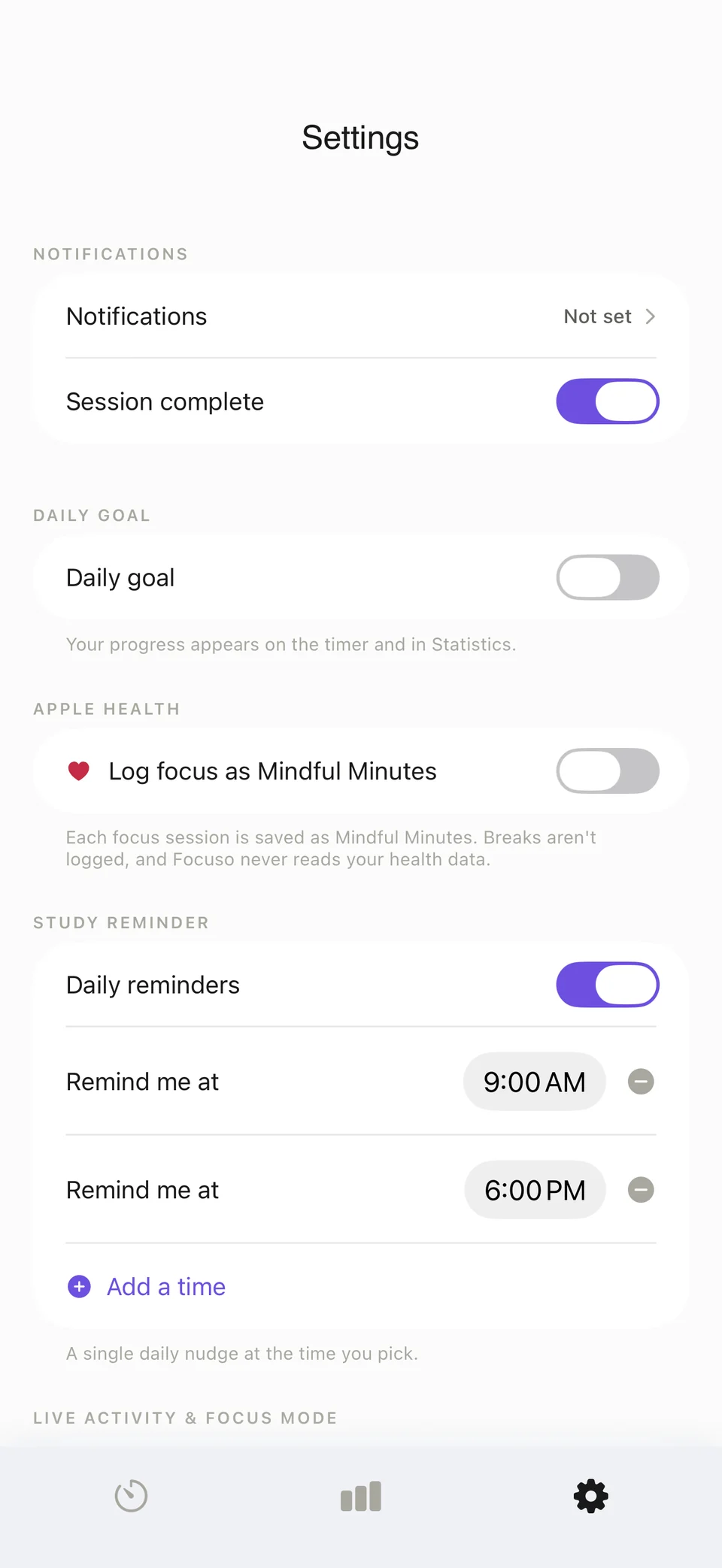
Add another time deliberately
Choose Add a time and set the new entry. If your routine changes, edit the time or remove an extra entry. The verified 22.0 implementation supports up to six reminder times. These repeat daily rather than offering separate weekday schedules.
Choose a time associated with a practical opportunity: after arriving home or before an evening reading session. These are personal planning suggestions, not a guarantee of habit formation.
Check permission and delivery
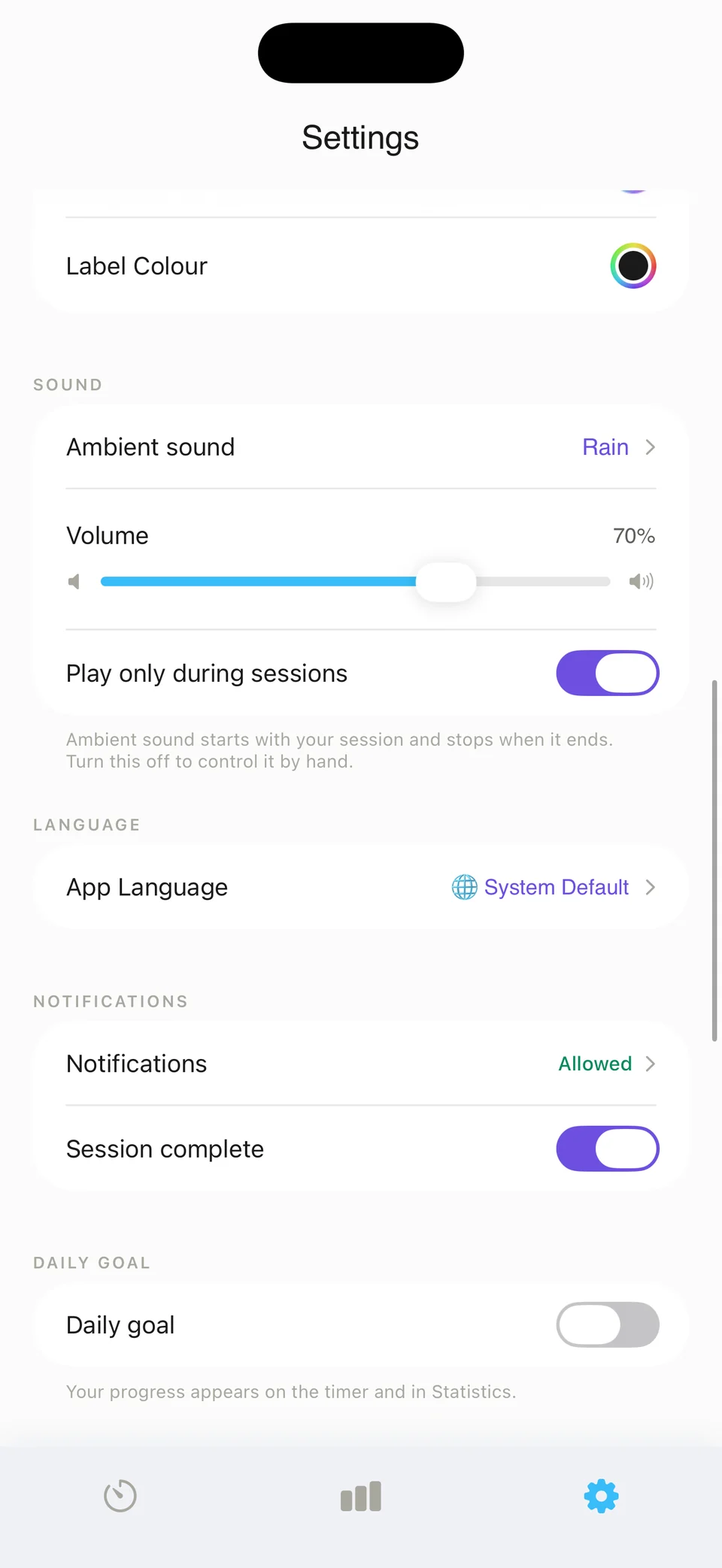
Test a reminder while using the device normally. An active Focus mode or notification presentation setting can change what you notice. Local scheduling does not guarantee an alert will interrupt you under every system setting.
Keep only useful prompts
If you repeatedly dismiss one, change or remove it rather than adding more. Tapping the reminder is an invitation to open the app, not proof that a session has started.
Focuso starts with a seven-day automatic trial and offers optional lifetime Pro without a subscription. Use the installed access screen for premium features, including completion notifications and detailed statistics.
For end-of-session alerts, use the completion notification check. For choosing a workable routine, see weekly history.