In this article
A quote widget can put a short reading on the Home Screen. Before adding one, it is worth checking which widget types the app actually supports.
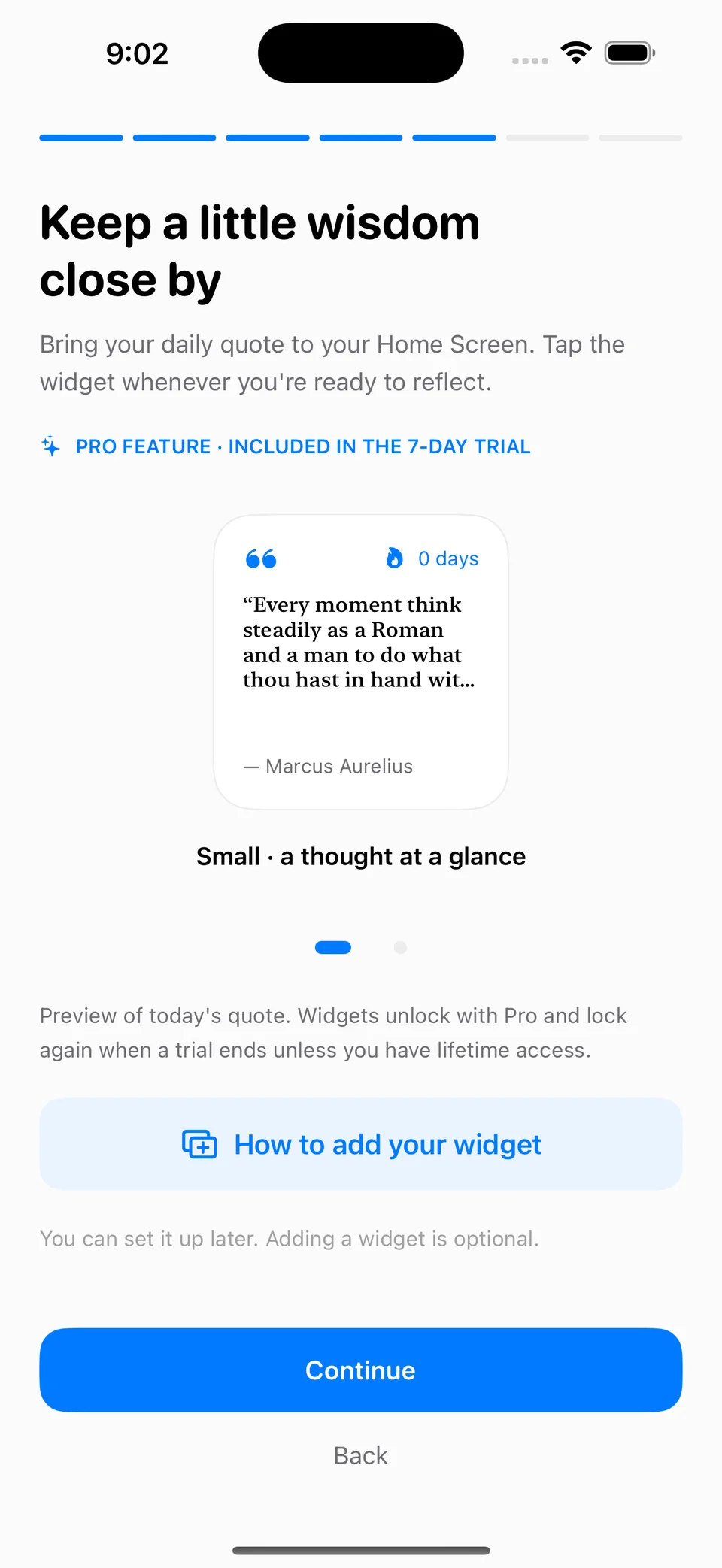
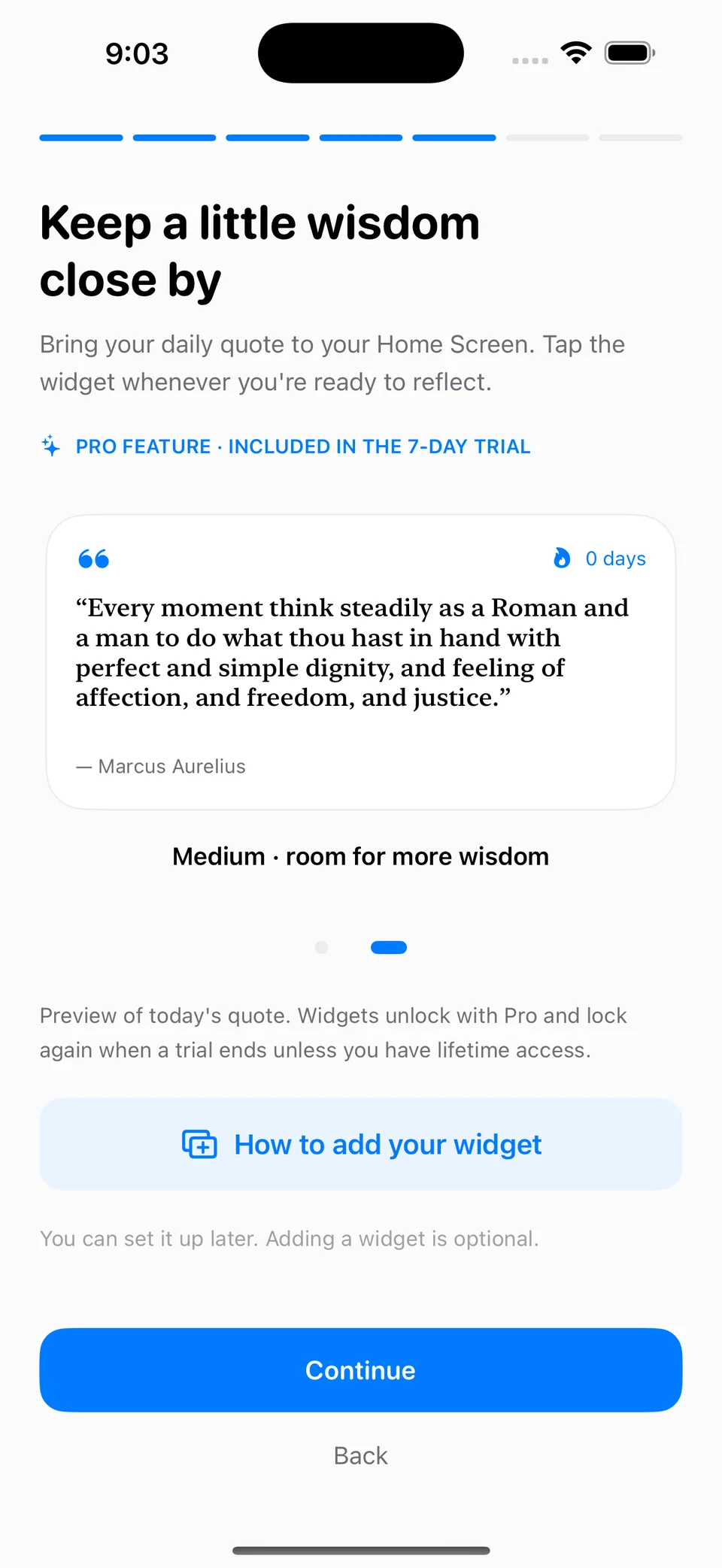
The verified Daily Quotes 5.0 widget supports small and medium Home Screen layouts. The earlier version of this article incorrectly described circular and rectangular Lock Screen widgets. I have kept the URL and corrected the instructions.
Choose a Home Screen size
Open Daily Quotes once, then touch and hold an empty Home Screen area. Use the system option to add a widget and find the app. Choose one of the offered small or medium layouts.
Check trial or Pro access
Widgets require lifetime Pro or an active eligible trial. Without access, the widget displays a locked state. Eligible users can try Pro for seven days without a subscription, renewal, or automatic charge.
After a trial expires, saved reflections remain, while Pro features lock unless you choose the lifetime purchase. Daily reading and reflection continue free with ads.
Allow time for a refresh
A widget is not a live mirror of every in-app change. Open the app, check the current reading and access state, then return to the Home Screen. Allow time for the system to refresh it.
If the result remains unexpected, confirm the widget belongs to the correct app and that its access is active. Reinstalling the app should not be an early troubleshooting step when local reflections matter.
Use a wallpaper for a different surface
If you want the passage on the Lock Screen, export a wallpaper and apply it through iOS. A saved image does not update like a widget.