In this article
A word widget can make a small learning prompt visible without requiring you to open the app first. In VocabZ, the widget is a teaser: a word and, when enabled, an example. Tapping takes you into the app for more detail.
I would use it as a reminder to recall something, not as a replacement for a study session. Here is how to set it up and keep the text readable.
Open VocabZ before adding the widget
Launch the app, finish the setup you want, and check its widget guide or settings. Review any free/Pro access information shown in your version. Check which customisation options are included in your current access.
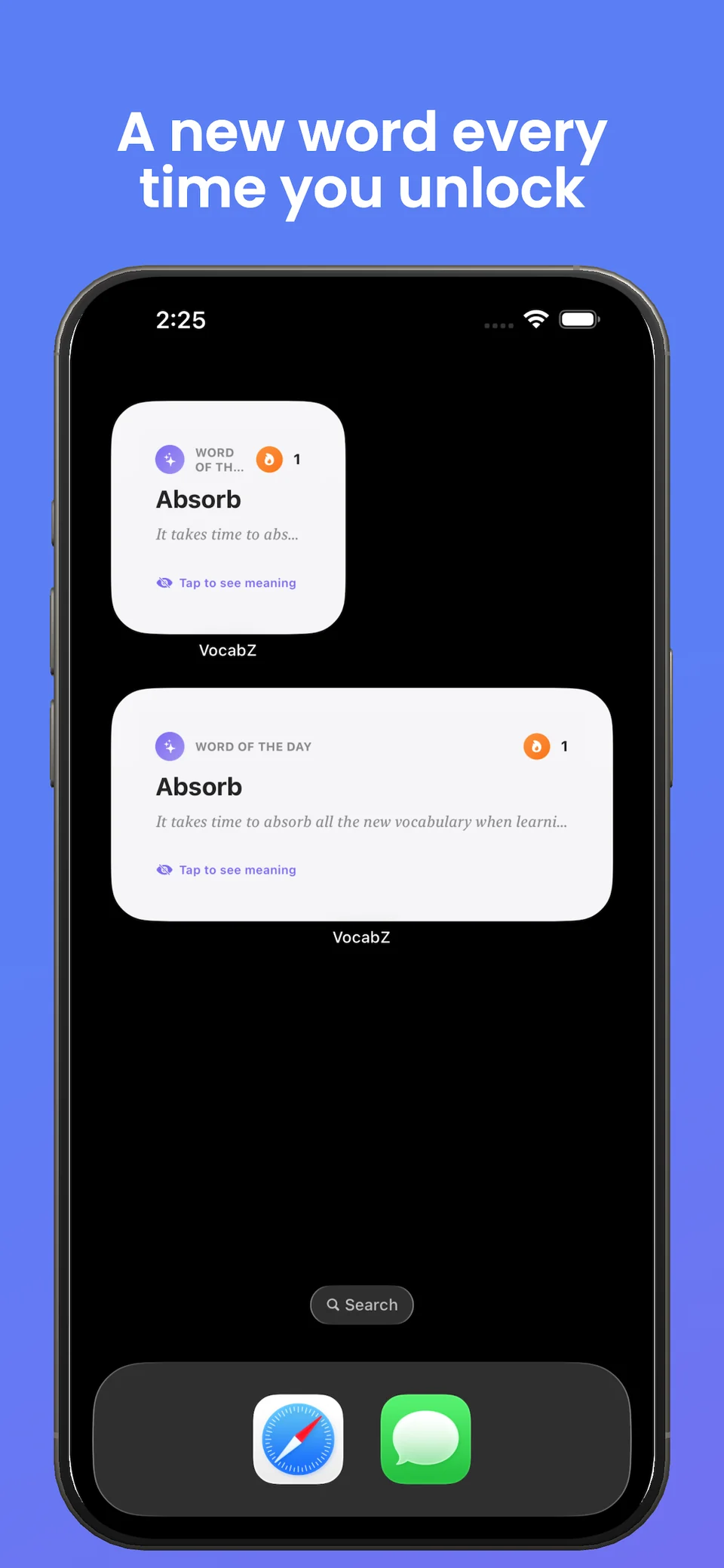
If you have just installed the app and it is missing from the widget picker, opening it once is a useful first step.
Add the Home Screen widget
- Touch and hold an empty area of the Home Screen until editing controls appear.
- Open the option to add a widget.
- Search for VocabZ and choose Word of the Day.
- Select a supported size, place it, and finish editing.
- Tap the widget once to check that it opens the expected word view.
The Home Screen widget supports small and medium sizes. Apple’s widget setup guide covers the system controls, which can vary with your iOS version.
Choose content before decoration
In VocabZ’s widget customisation, review the content options for the example sentence and streak. A short example can help you recall how a word is used. If you prefer a simpler prompt, reduce the extra content.
Custom accent and background colours let you match the widget to your Home Screen. Choose enough contrast to read both the word and the smaller example. A pale accent on a pale background may look coordinated but make the prompt harder to use.
Use the Lock Screen option where available
The widget extension also declares a rectangular accessory size for compatible Lock Screen placement. Add it through the Lock Screen’s widget controls rather than expecting the Home Screen’s medium layout to appear there.
Space is tighter on the Lock Screen. Check the actual result on your device and keep visible information appropriate for a screen other people may see.
Turn a glance into a small practice
Before tapping, try to explain the word or complete a sentence with it. Then open the app and check. If the word is unfamiliar, read the example and use it once in your own sentence.
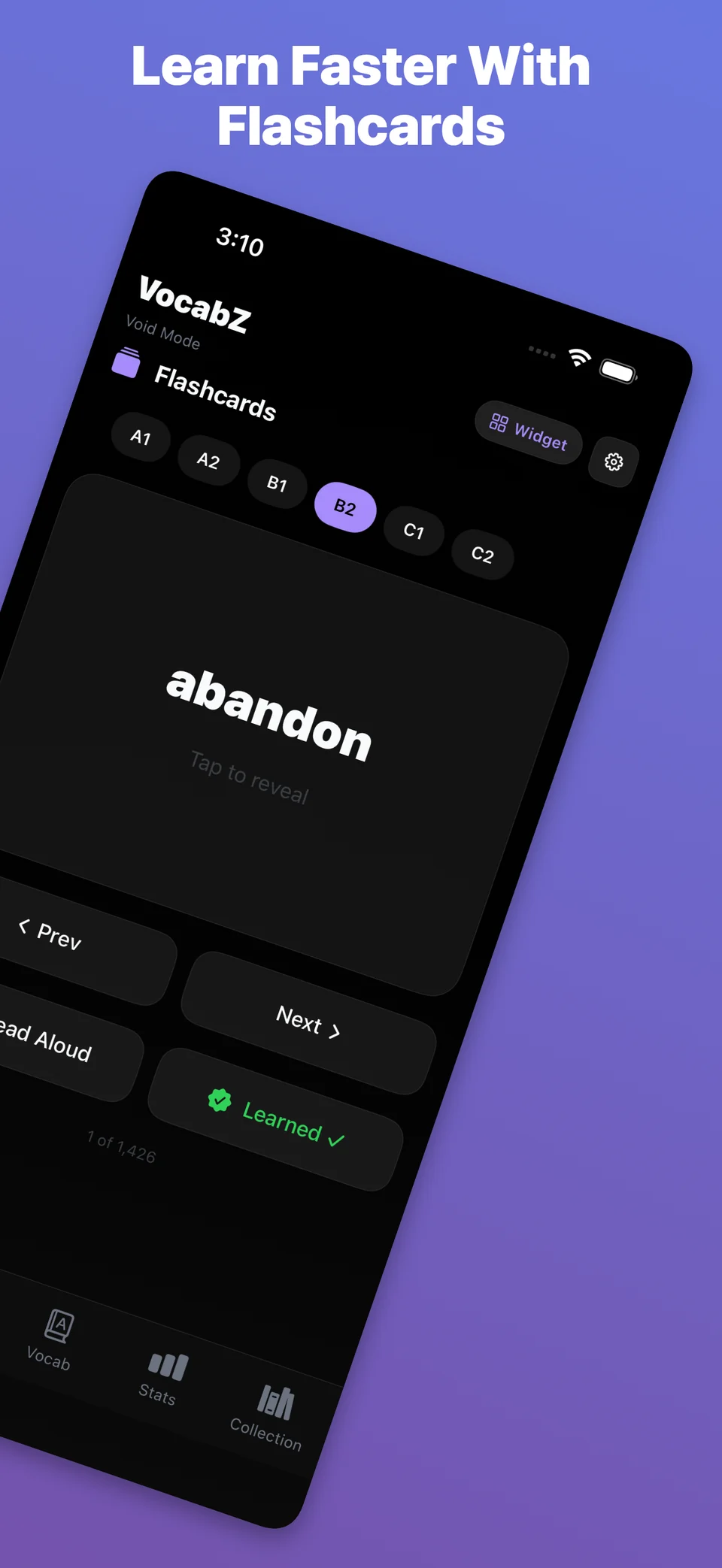
The value is in that attempt, not simply having a widget on the screen. Pair it with a short review routine when you have more time.
If the widget looks stale
iOS controls widget refresh timing, so do not expect a new image or word every time you unlock the phone. Open VocabZ, check that its content and settings are available, and give the widget time to refresh.
If it remains wrong, try removing and adding the widget again after checking your settings. Reinstalling the app should not be the first troubleshooting step when it contains personal vocabulary you want to keep.
For words you find yourself, the personal collection guide explains how to save useful context and return for review.