In this article
A count-up timer and a countdown answer different questions: how long have I worked, and how long until the boundary I chose? Before giving setup instructions, I need to be clear about which control is actually in the released app.
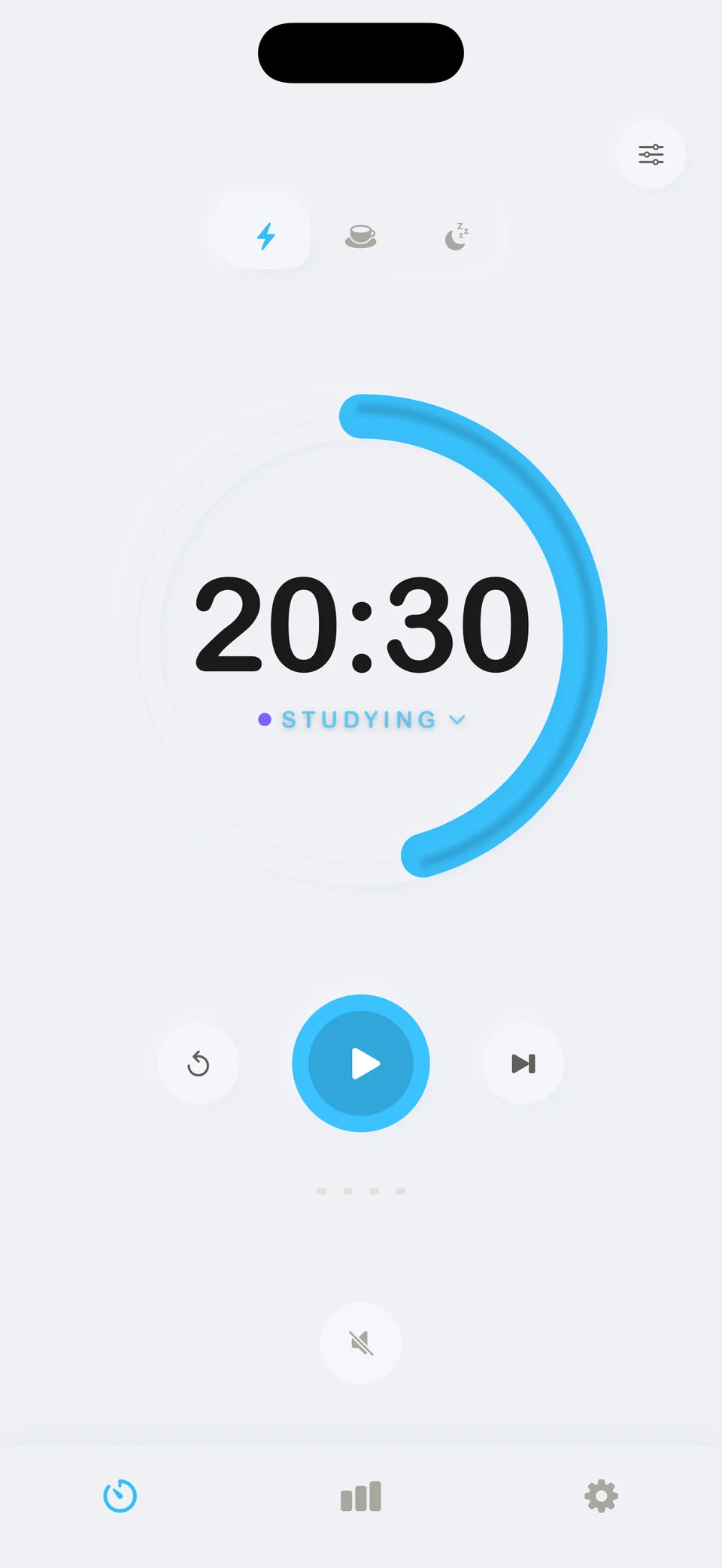
Focuso 22.0 has Focus, Short Break, and Long Break countdowns. The previous version of this article described an Open Flow toggle that is not present in the verified source. Those instructions were wrong.
Choose a countdown boundary
Pick a task and a duration you are willing to try. For a writing session, name a first action such as drafting three bullet points. The timer sets a boundary; it does not decide the task for you.
Adjust the interval instead of searching for a missing mode
Custom intervals are part of Pro and can be tried during the seven-day automatic trial. If the default feels too short, test a longer duration on comparable work, then inspect whether the boundary helped.
If an open-ended elapsed-time display is essential to your workflow, do not buy Focuso expecting the missing control described in the earlier article.
Keep the break deliberate
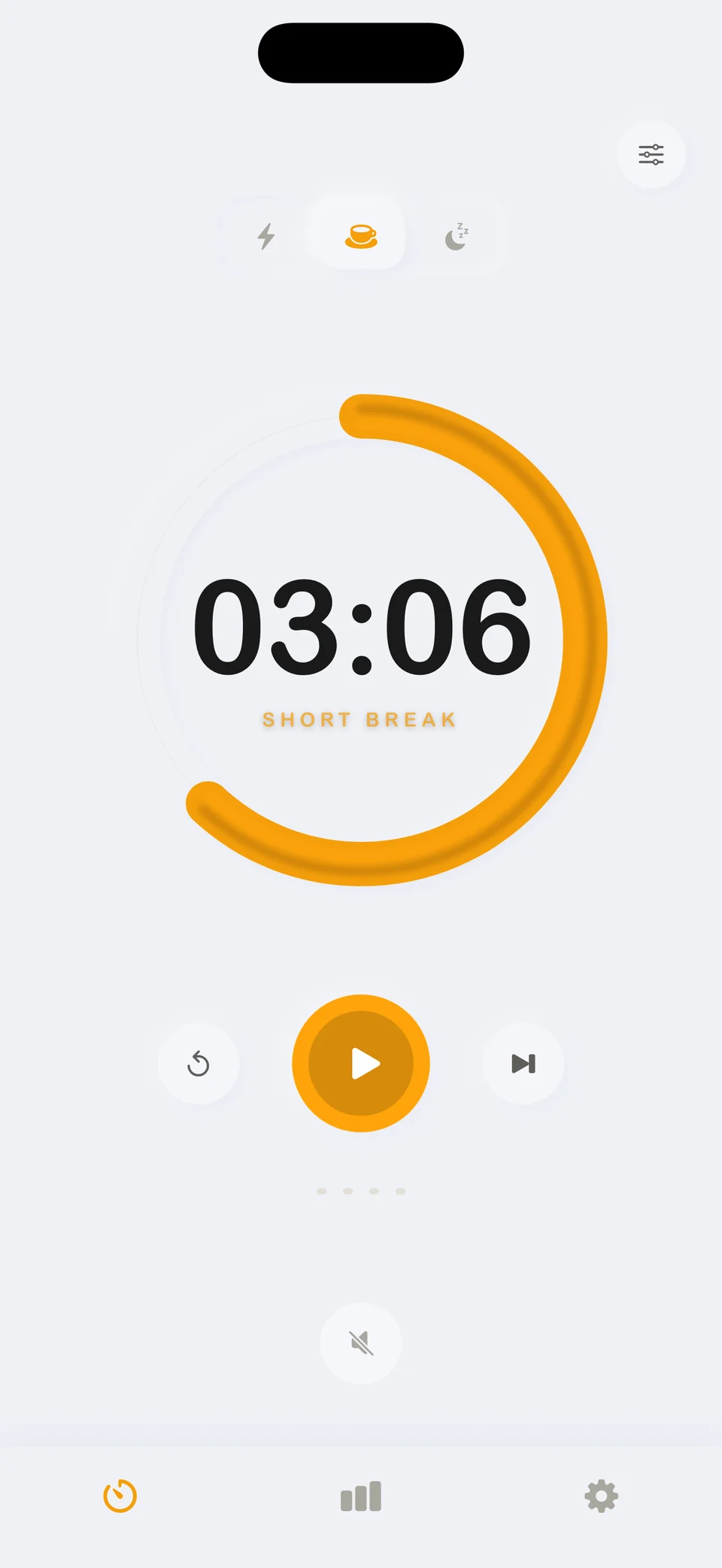
At the boundary, note where to continue and take the planned break. If interrupted, pause intentionally; moving the app into the background does not pause its timer.
Use the released feature boundary
Lifetime Pro is an optional one-time purchase without a subscription. It includes custom intervals, detailed statistics, appearances, the full ambient library, and completion notifications. The timer experience works offline without an account.
For actual interval setup, use 25/5 or 50/10. For interruptions, see pause and resume.